
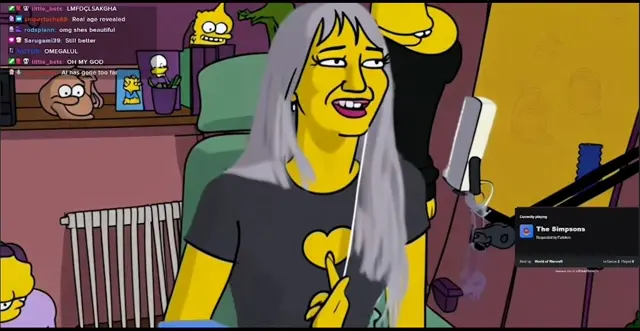
You can try an AI face swap in real time, right in your browser—no desktop app required. In Vivify, choose or upload a reference face, allow camera access, and watch the AI output respond as you move.
This guide focuses on the browser-based preview: what you need, how to start a short session, and what to adjust if the result does not look natural.
What You Need Before You Start
- A desktop or laptop with a working camera and a modern browser that can access it
- A stable internet connection
- A clear reference portrait that you own or have permission to use
- A Vivify account with enough credits for a short preview
Use a front-facing reference portrait with the eyes, mouth, and face shape clearly visible. Avoid heavy blur, strong shadows, sunglasses, or a face covered by hair. A clear reference image gives the model a better face to work from.
Try Realtime Face Swap Online in 3 Steps
1. Add a Reference Face
Open Vivify's Realtime Face Swap page, sign in, and confirm that Face Swap is selected. Choose one of the available reference images, or upload a clear portrait that you own or have permission to use.
2. Check Your Camera
Select Preview camera and allow camera access when your browser asks. Confirm that your face is clearly visible in the camera view.
If the wrong camera opens, switch devices in your browser or system settings. If the camera does not open, close other apps that may be using it and try again.
3. Start the Live Preview
Use the quality and credit details shown in the workspace to choose a model, then select Start live preview. Wait a few seconds for the AI output to settle, move naturally to check the result, and select Stop preview when you finish.
How to Get a More Natural Result
Start with even lighting from the front. Strong backlighting or a bright light from one side can hide facial details the model needs. Keep your face large enough in the frame, but leave a little space around your head so movement does not push it outside the camera view.
For the first test, look mostly toward the camera and move slowly. Once the output is stable, try small head turns and natural expressions. Hands covering your face, quick head turns, hair over your eyes, and extreme side angles are more likely to create temporary distortion or make the face swap look unstable.
If the result feels unstable, change one thing at a time: improve the reference photo, adjust the light, reduce movement, or try another available model. That makes it easier to see which change improved the result.
How the Online Preview Works
After you start, the browser captures the selected camera feed and sends it to a temporary realtime AI session. The model uses the reference portrait to generate transformed frames, then Vivify returns those frames to the browser as the AI output.
Opening the camera in a browser does not mean all processing happens on your device. Network quality, video encoding, AI processing, and playback all contribute to the delay you see between the original and transformed views.
What to Expect from the Online Experience
The web version is designed for short interactive previews. It does not record, download, export, or save the transformed video stream. Check the current credit rate shown beside the controls before starting, and stop the session when you finish testing.
Results vary with the reference image, camera quality, lighting, movement, face angle, anything covering the face, network conditions, and the selected model. “Realtime” means the preview updates continuously; it does not mean zero latency or a perfect result in every frame.
Always use an authorized reference. Do not use the tool to impersonate, deceive, harass, or misrepresent another person, and disclose realistic synthetic media when the context requires it.
Common Questions
Do I need to install an app?
No. This tutorial uses the browser-based preview. Open the page in a browser that can access your camera, sign in, and allow camera access.
Why can't Vivify access my camera?
Check the camera permission in the browser's site settings. If permission is already enabled, close other apps that may be using the camera, then reload the page and try again.
What kind of reference image works best?
Use a sharp, front-facing portrait with one clearly visible face, even lighting, and nothing covering the eyes or mouth.
Does Vivify save the transformed video output?
The current browser experience provides a live preview and does not record, download, or save the transformed video stream.
Why is there a delay?
Each frame has to be captured, encoded, sent to the AI model, processed, sent back, decoded, and displayed. Your connection and current service conditions can change the delay you notice.
Try Realtime Face Swap Online
Ready to see it for yourself? Choose a reference image you have permission to use and start with a short preview.