
Vivify wordmark logo
    ImageVideoLive Face SwapNew
  • BlogPricing
Vivify wordmark logo

Imagine. Create. Vivify.
An all-in-one creative platform that turns ideas into photos, art, and living motion.

Product
AI Image GeneratorAI Video GeneratorLive Face Swap
Explore
AI PromptsBlogGPT Image 2.5Gemini Omni FlashImage to imageImage to video
About
About UsGitHubPrivacy PolicyTerms of ServiceAcceptable Use Policy
© 2026 Vivify, All rights reserved

GPT Image 2.5 Image Generator

Create an image from a prompt or edit a reference image. Start with Flare for everyday work, or try Sunburst for detailed images and precise edits.

ImageVideo
AI Image Workspace
0 / 2000
Cost 11 creditsTime varies by quality and inputs
Generated Images
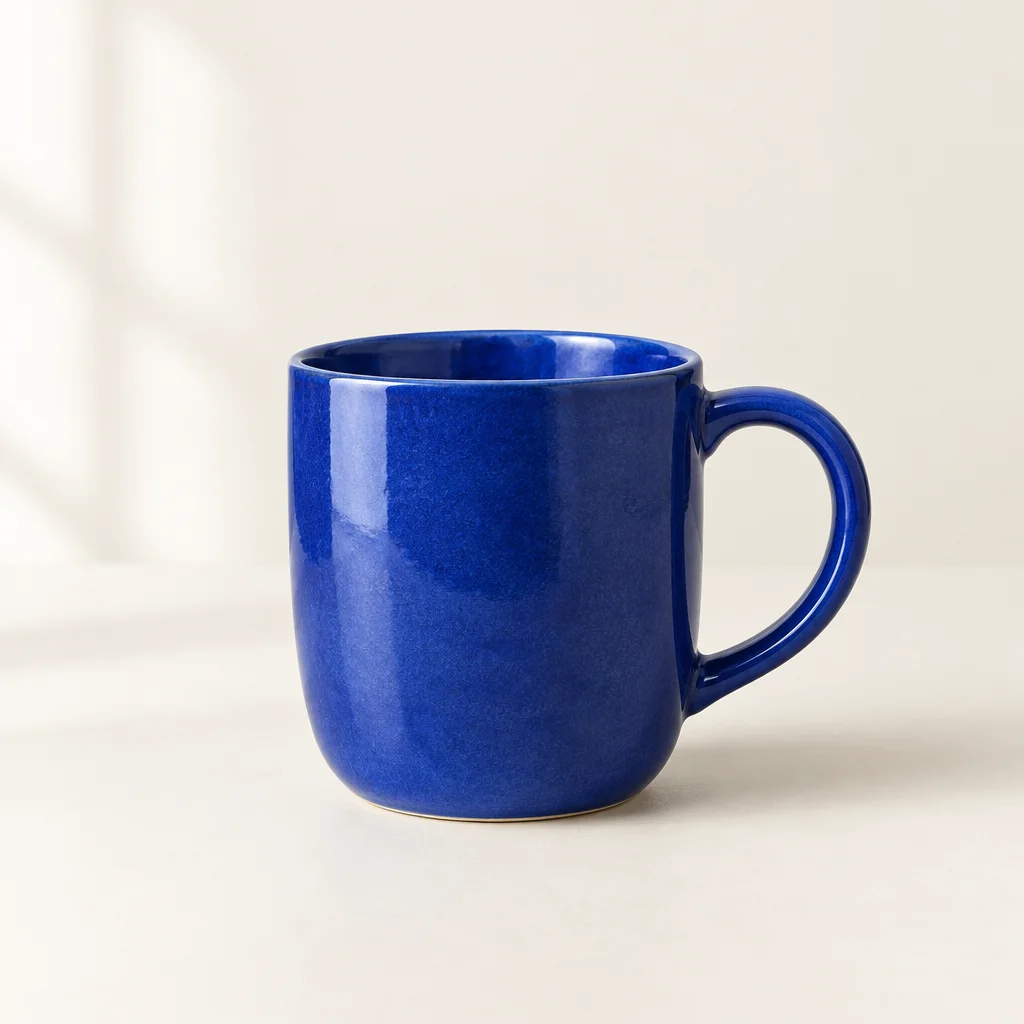
Blue ceramic cup on a warm ivory background

Made with GPT Image 2.5

See the results, before and after

All examples use GPT Image 2.5 at medium quality and a 1:1 aspect ratio. Use a prompt to try it yourself. For an edit, adapt the subject, colors and text to your image, then upload your reference.

Flare: change a product background

Original image

Blue ceramic cup on a warm ivory background
View original prompt

Studio product photograph of one cobalt blue ceramic coffee cup with a smooth curved handle, centered on a pale ivory seamless background and matching tabletop. Soft natural window lighting from the left, delicate contact shadow, realistic ceramic glaze texture, clean premium editorial composition, no writing, no logo, no extra objects.

After editing

Blue ceramic cup on a peach background
View original prompt

Change only the ivory background and tabletop to a soft pastel peach color. Preserve the exact cobalt blue ceramic cup, its handle, shape, position, glaze texture, lighting direction and delicate shadow. Keep the photograph realistic. Add no text or objects.

Sunburst: new colors, same headline

Original image

WEEKEND STUDIO poster in cream, coral and blue
View original prompt

Create a polished square graphic design poster. The exact headline WEEKEND STUDIO is set in large crisp bold black sans-serif typography, WEEKEND on the first line and STUDIO on the second. Warm cream background with a simple coral red circle and two cobalt blue geometric rectangles arranged below the headline. Spacious balanced modern print composition, precise edges. Only the exact words WEEKEND STUDIO, no other text, no logos, no watermark.

After editing

WEEKEND STUDIO poster in mint, violet and orange
View original prompt

Recolor this poster while preserving its exact layout and the exact headline WEEKEND STUDIO with identical legible typography. Change the warm cream background to very pale mint, coral circle to deep violet, and cobalt blue rectangles to warm orange. Keep the headline black. Do not add, remove or alter any letters or shapes.

What is GPT Image 2.5?

GPT Image 2.5 is OpenAI’s image generation and editing model family, announced on September 8, 2026. In Vivify, choose Flare or Sunburst to generate images from text or edit your reference images.

Start with Flare for product images, social posts and drafts. Try Sunburst for detailed images or precise edits.

GPT Image 2.5 vs GPT Image 2: which should you use?

Choose GPT Image 2 for a smaller credit budget, higher resolutions or more reference images. Try 2.5 to explore the newer lighting, texture and editing capabilities.

What mattersGPT Image 2GPT Image 2.5
Announced
April 21, 2026September 8, 2026
Visuals and editing
Supports complex instructions, text-rich visuals and reference editing.OpenAI reports improved lighting, textures and detail preservation across edits.
When to choose it
Drafts, posters and concepts on a smaller budget; projects that need higher resolutions or more references.Flare: everyday product images and drafts. Sunburst: detailed images and precise edits.
Vivify credits per image
6 at 1K; 10 at 2K; 16 at 4K.At 1:1: 11 credits for medium quality or 43 for high. At 4:3 / 3:4: 8 or 29. Each reference adds 2 credits. Flare and Sunburst cost the same.
Resolution and references
1K / 2K / 4K; up to 16 references1K; up to 4 references
Generation time
We haven’t timed GPT Image 2 and 2.5 under the same conditions.OpenAI reports 50% lower latency for Flare than GPT Image 2. Sunburst may take longer; wait times vary by task and queue.

All prices shown are in Vivify credits. GPT Image 2 is priced by resolution; 2.5 by quality, aspect ratio and references. The available settings differ, so consider the resolution and editing results you need.

Our four 1K, medium-quality example runs each took about 20–22 seconds, from submission through image processing. Each variant and mode was tested once with a different prompt, so these timings don’t establish which is faster.

Sources: OpenAI Images 2.5 · OpenAI Images 2.0 · GPT Image 2

Create a new visual. Refine the details.

Turn a brief into an image

Describe the subject, composition, lighting and any text you need. Create product scenes, posters or visual concepts from one prompt.

Edit an existing image

Upload your image and describe the change, such as a new background or color palette. State which subject details should stay the same.

Choose Flare or Sunburst

Use Flare for everyday images and revisions. Try Sunburst for detailed images or precise adjustments.

How to use GPT Image 2.5

  1. 01

    Add a prompt or reference image

    Choose Text to Image for a new visual, or Image to Image to edit a reference. Describe the result and the details to preserve.

  2. 02

    Choose settings and check credits

    Select Flare or Sunburst, choose the ratio, quality and format, then review the credit total.

  3. 03

    Generate your image

    Start generating and wait for your image. Sunburst may take longer.

  4. 04

    Review and download

    Check text and subject details, then download. Upload the result as a new reference when you want another edit.

Try this product photo prompt

A square product photograph of a cobalt-blue ceramic mug on warm ivory paper, soft side lighting, gentle shadow, generous empty space on the right, no text.

GPT Image 2.5 settings and credits

Flare and Sunburst both support Text to Image and Image to Image. Generate one image at a time with up to 4 references. Available aspect ratios: 1:1, 4:3, 3:4.

VariantTypical useAspect ratio and outputMedium quality (credits)High quality (credits)Credits per reference
GPT Image 2.5 Flare
Everyday images and revisions1:1 · 1024 × 1024 · PNG / JPG / WEBP1143+2
GPT Image 2.5 Flare
Everyday images and revisions4:3 / 3:4 · 1024 × 768 / 768 × 1024 · PNG / JPG / WEBP829+2
GPT Image 2.5 Sunburst
Detailed visuals and precise edits1:1 · 1024 × 1024 · PNG / JPG / WEBP1143+2
GPT Image 2.5 Sunburst
Detailed visuals and precise edits4:3 / 3:4 · 1024 × 768 / 768 × 1024 · PNG / JPG / WEBP829+2

Prices are in credits per image, before reference images. Each reference adds 2 credits. Check the total before generating.

GPT Image 2.5 FAQ


Create with GPT Image 2.5

Enter a prompt or upload an image to edit. Choose your settings, check the credits and start creating.

Start creatingExplore image modelsImage to videoView plans