AI Video Generator

Turn prompts or reference frames into short clips and animation results with clear model, duration, and credit guidance.

AI Video Generator

AI Video Workspace
Reference Images(0/2)
0 / 20000
Cost 150 creditsEst. time: 6 min
Video Result Preview

Motion use cases

See What You Can Turn into Motion

Use these examples to compare three clear motion paths: create storyboard sequences, animate a starting frame, or draft a scene from an idea.

Storyboard sequences

Create storyboard sequences

Turn storyboard frames, shot plans, and sequential visual ideas into short motion tests for stories, transitions, and scene concepts.

  • Storyboard image plus sequence examples
  • Sequential shots and transitions
  • Character, fashion, and action beats
  • Strong fit for prompt-gallery remixing
Try storyboard sequences
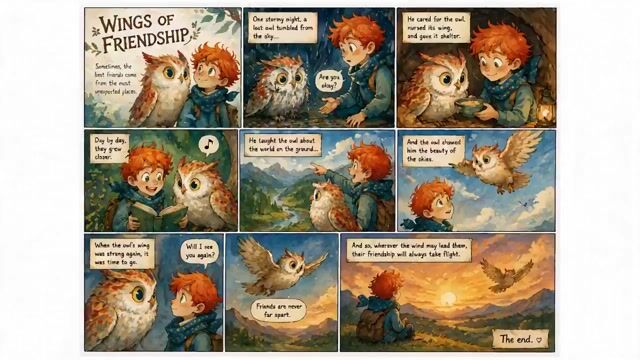
Six-panel illustrated storyboard of a boy and birds in a warm outdoor friendship sequence.

Image to video

Animate a starting frame into motion

Start from a generated scene, character, product frame, or story still, then add camera movement, atmosphere, and subject action.

  • Best when the starting frame matters
  • Works for characters, products, and scenes
  • Keeps the prompt focused on clip movement
  • Pairs naturally with image generation
Try image to video
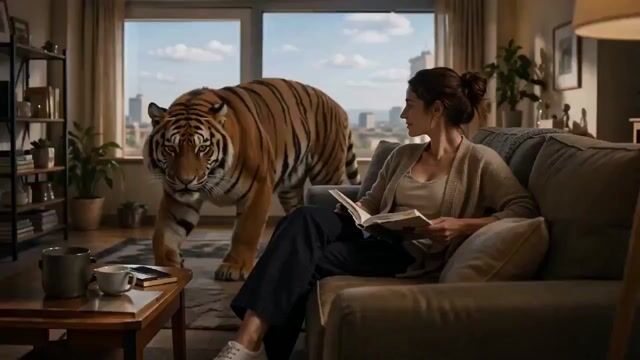
Cinematic living-room video frame with a tiger in a dramatic scene, used as an image-to-video action example.

Text to video

Turn scene ideas into short video drafts

Describe the subject, setting, camera, and mood to create a first-pass clip for cinematic scenes, social drafts, and story experiments.

  • Scene and camera direction
  • Cinematic mood tests
  • Social-ready motion drafts
  • Useful for fast concept iteration
Try text to video
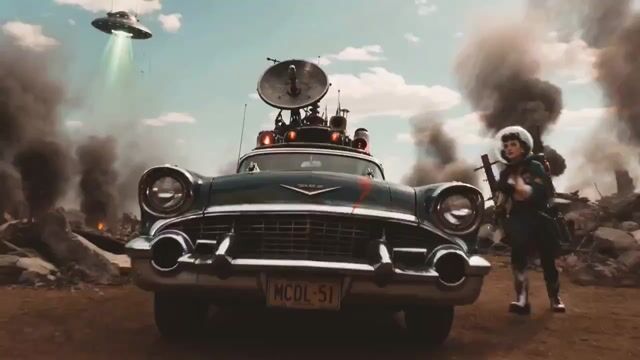
Vintage black car and rider in a smoky desert chase scene with cinematic dust, warm lighting, and action-commercial framing.

Compare Supported Video Models

Use model choice as a practical clip workflow guide. Resolution, duration, audio, quality, source videos, reference frames, and credits vary by supported models.

ModelReleasedBest forWorkflowDuration (s)ResolutionAudioRefsCredits/run
Wan 2.7
2026-04-07Simple short clipsText/Image5720p/1080pNo1-280-120
Seedance 2.0
2026-02-12Longer clipsText/Image4-15480p/720p/1080p1-272-1425
Kling 3.0
2026-02-054K, camera controlText/Image3-15720p/1080p/4K1-242-1005
Veo 3
2025-05-20Fast Google clipsText/Image8720p/1080p1-260-65
Veo 3.1
2025-10-15Quality modes, 4KText/Image8720p/1080p/4K1-225-370
Gemini Omni Flash
2026-05-19Source-video editsVideo Edit4-10720p/1080p/4KNo1 video, 0-5 images240-360

The generator shows the exact cost before each run, so use this table for quick model selection and confirm settings before spending credits.

Start from Text or an Image

Vivify focuses on two clear AI modes: text-to-video for prompt-to-clip creation, and image-to-video for reference-frame animation. Choose the mode that matches the strongest input you have.

Create from prompt

Use the AI video generator from text when the scene, camera path, subject movement, pacing, and mood can be described clearly in words.

Animate an image

Use the AI video generator from image references when a product photo, illustrated character frame, composition, or visual continuity should guide the result.

Extend key-frame material

Use references when the AI video clip should preserve product specifics, illustrated character style, layout, or a specific starting composition.

Where AI Video Works Best

The right Vivify AI video setup depends on what you are making and which limits matter most.

Ads and product videos

Use image-to-video or reference-frame animation when product shape, packaging, or scene continuity matters more than pure prompt exploration.

Social clips and short scenes

Use text-to-video or prompt-to-clip creation for short narrative beats, quick social concepts, and mood-driven scenes with clear pacing.

Character or key-frame motion

Use reference frames when an image-to-video clip should preserve product details, illustrated character style, composition, or visual world continuity across the generated motion.

Audio-aware clips on supported models

Enable audio only when the selected AI video model offers it, and expect audio-capable runs to change the credit tradeoff.

Direct the Motion Details

Strong AI video prompts describe what changes over time and what the model should preserve.

Describe camera movement

Call out push-ins, pull-backs, tracking, orbiting, pans, depth shifts, or static framing when the camera path matters.

Define subject motion

Say what the subject does during the clip, how fast it moves, and what should happen by the final frame.

Match the prompt to duration

Short clips need one clear action. Longer supported durations can carry more scene change, but still need a simple motion arc.

Guide reference-frame continuity

When uploading a reference frame for image-to-video, specify what must stay recognizable and what kind of motion the model should add.

Understand quality, cost, and timing

AI animation and video clip generation are slower and more credit-intensive than image generation. The selected supported video model controls the tradeoffs.

Credits vary by model and settings

Resolution, duration, audio, quality mode, and reference inputs can change the number of credits required before each run.

Audio and 4K are not universal

Use audio, 4K, and quality options only on supported models. If a model does not expose an option, choose another path.

First outputs are drafts

Treat the first AI video clip as direction finding. Refine the motion prompt, reference frame, model, or settings for stronger follow-up runs.

AI Video FAQ

Answers for choosing an AI video generator workflow before starting a higher-cost run.


Create Your Next Video Clip

Return to the video workspace, go home, or open image generation for your next creative step.